The power and magic of the AppGrid QueryBuilder
The AppGrid query functionality is a game changer. It provides the ability to answer business questions that the native UI can't. This ability accelerates business operations by providing the exact data needed for a given workflow.
Salesforce's native filtering forces a tradeoff. List views handle one object at a time. Report Builder lets you cross relationships but only one level down, only in pre-defined directions, and only if your admin built the report type. Data in reports are not operable so this is not a solution. Anything beyond that — "show me Accounts whose Cases have a violated SLA milestone" — sends you to a developer, a Tableau seat, or a custom Apex batch.
AppGrid's QueryBuilder closes the gap. It lets a power user build the same multi-object questions you'd otherwise need SOQL for, directly in the grid, against any object in your org. Four capabilities make this work. We'll start with the one Salesforce can't do at all.
Three-level chained queries — the magic behind the power
Try this in Developer Console:
SELECT Id FROM Account WHERE ID IN ( SELECT AccountId FROM Case WHERE Id IN ( SELECT CaseId FROM CaseMilestone WHERE IsViolated = true) )
You'll get: Nesting of semi join sub-selects is not supported. It's a hard SOQL limitation. The only ways around it are custom Apex, a scheduled batch that materializes the result into a flag field, or pulling the data into a BI tool. None of those are available to a sales ops manager at 4pm on a Friday.
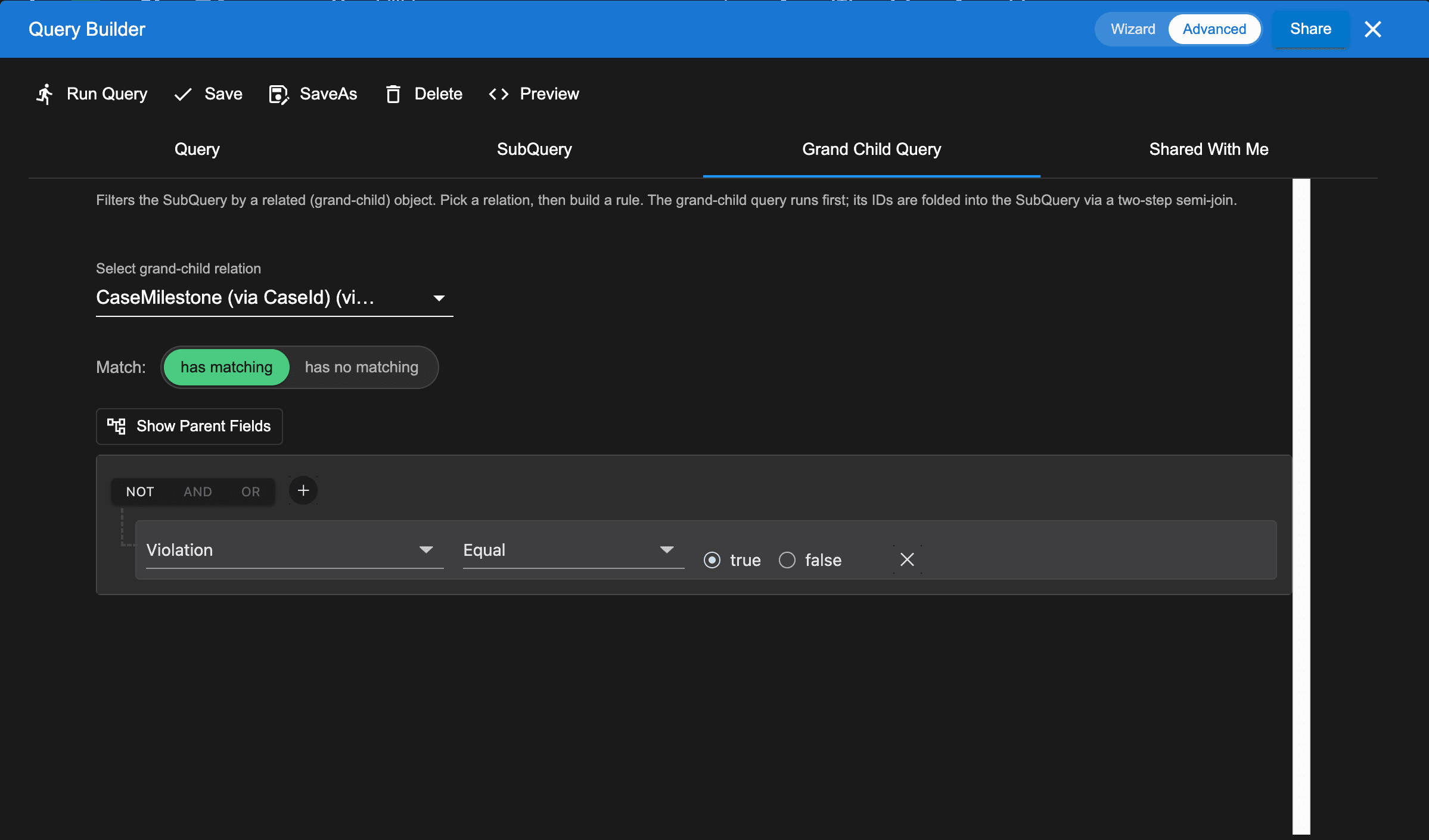
AppGrid's Grand Child Query tab solves it the same way a developer would by hand: pre-resolve the grand-child into a list of IDs, fold those IDs into the SubQuery, then fold the SubQuery's IDs into the main query. Three SOQL statements chained into one answer.
Example — "Accounts with SLA violations":
Main filter: Account where
IsDeleted = falseSubQuery: Cases that has matching CaseMilestones where
IsEscalated = trueGrand Child: CaseMilestones where
IsViolated = trueThe Query Preview pane shows you exactly what executes:
-- Step 1: Grand-child query → projects Case IDs SELECT CaseId FROM CaseMilestone WHERE IsViolated = true
-- Step 2: SubQuery → projects Account IDs SELECT AccountId FROM Case WHERE IsEscalated = true AND Id IN (:idsFromStep1)
-- Step 3: Account (final result) SELECT ... FROM Account WHERE IsDeleted = false AND Id IN (:idsFromStep2)
This is the same plan a developer would write. No custom Apex, no scheduled batch, no Tableau extract. The SubQuery + Grand Child capability assumes the matching toggle described next — read on for how that works.
Child-record matching — "has matching" and "has no matching"
The most common filtering question in Salesforce isn't about a single object — it's about relationships. "Accounts that have an open Case." "Opportunities that don't have any line items." "Contacts who haven't logged a task in 90 days."
Salesforce's answer is cross-filters in Report Builder — buried, awkward, and bound to a specific report type your admin had to build first.
AppGrid's answer is a SubQuery tab with a single toggle: [ has matching | has no matching ]
Pick the child relationship, build the filter for the child object, set the toggle. The grid shows you parent records that match the relationship in the direction you chose.
Example — "Accounts that have an open Case":
Match: has matching Cases
Where:
IsClosed = false
Example — "Accounts whose Opportunities have NO line items":
Match: has no matching OpportunityLineItems
Where: (any line item — leave the filter empty)
Under the hood this compiles to a SOQL semi-join (Id IN (SELECT … FROM …) or Id NOT IN). The Wizard explains the semantics inline in plain English — "Keeps Accounts that have at least one Case matching the rules below" — so users don't have to know what a semi-join is to get the right answer.
Parent fields — query across the lookup, in any direction
Native list views can show parent fields in columns, but they can't filter on them. If you're on the Contact tab and want "Contacts in Texas," you have to build a custom report type or roll up Account.BillingState as a formula field on Contact.
In AppGrid's QueryBuilder, you click Show Parent Fields, check the Account relationship, and Account.BillingState appears in the field picker alongside Contact's own fields. Same for Account.Owner.Title two hops up.
Example — On the Opportunity grid:
Account.Industry = 'Healthcare' AND Account.Owner.Profile.Name = 'Enterprise AE'
No custom report type. No roll-up formula fields. No SOQL. The query runs against live data and the grid updates in place.
Parent fields work everywhere a filter does: on the main query, inside a SubQuery, and inside a Grand Child. So you can ask "Accounts whose Cases assigned to Enterprise AEs have violated SLAs" — three levels of join, with a parent-traversal filter applied inside the middle level. That's a full Tuesday of work in Apex, or about 90 seconds in AppGrid.
The Query Preview pane shows you exactly what executes:
This is the same plan a developer would write by hand. No custom Apex, no scheduled batch, no Tableau extract.
The Wizard — guided filtering for everyone else
The capabilities above are real, but power-user UIs scare off the people who'd benefit most. So every QueryBuilder dialog ships with a toggle in the header: [ Wizard | Advanced ]
Advanced mode is the three-tab editor for users who already know what they're doing.
Wizard mode is a 3-step guided flow that walks the user through one filter level at a time, with plain-English sentences:
Step 1: "Show only Accounts where:" — root filter
Step 2: "Show only Accounts that has matching Cases where:" — sub-filter
Step 3: "…and those Cases have matching CaseMilestones where:" — grand-child filter
Each step explains what the match toggle will do, in the user's language:
→ Keeps Accounts that have at least one Case matching the rules below.
Toggle to has no matching and the sentence updates live:
→ Keeps Accounts that have NO Cases matching the rules below (or no Cases at all).
Both modes write to the same saved-query format. A user can start in the Wizard, save the query, and a power user can later open the same query in Advanced mode to tweak it. Nothing is lost in translation.
Why this matters
Native Salesforce filtering is built around what a single object can answer. The questions your team actually asks are almost always about relationships between objects — and that's exactly where the platform sends you to a developer.
AppGrid QueryBuilder gives that capability back to the people who own the data. The features compound: three-level chained queries plus matching plus parent fields plus a Wizard that explains the semantics means a sales ops manager can build "Accounts in the Northeast whose Opportunities have line items over $50K but no scheduled close activity" without filing a ticket.
That's the difference between a tool that queries data and a tool that answers questions.