AppGrid Dashboards
Interactive dashboards, built in
Build Salesforce dashboards with drag-and-drop KPIs, charts and tables — with cross-filtering and multi-page reports that rival enterprise BI, without the cost or complexity.
Drag-and-drop KPIs
Assemble charts, tables and KPI cards on a canvas — no external BI tool and no developer required.
Cross-filter everything
Click any chart to filter the whole dashboard, so every tile responds to the segment you select.
Multi-page reports
Combine multiple pages of charts and tables into client-ready reports that update live from Salesforce.
Design interactive Salesforce dashboards with drag-and-drop KPIs, charts, tables, cross-filtering, and multi-page reports — all inside your grid, no external tools required
We are thrilled to announce the newest feature to AppGrid - the ability to create cross-filter dashboards!
AppGrid dashboards are designed with a point-and-click interface that makes it easy for business users to create analytic reports.
AppGrid dashboards leverage our enterprise query technology so you can create the report once and execute different queries to change the report data dynamically.
We integrated our dashboards with Data360 so you can report on your production data kpis. Heres an example showing healthcare claims data linked to important relational data.
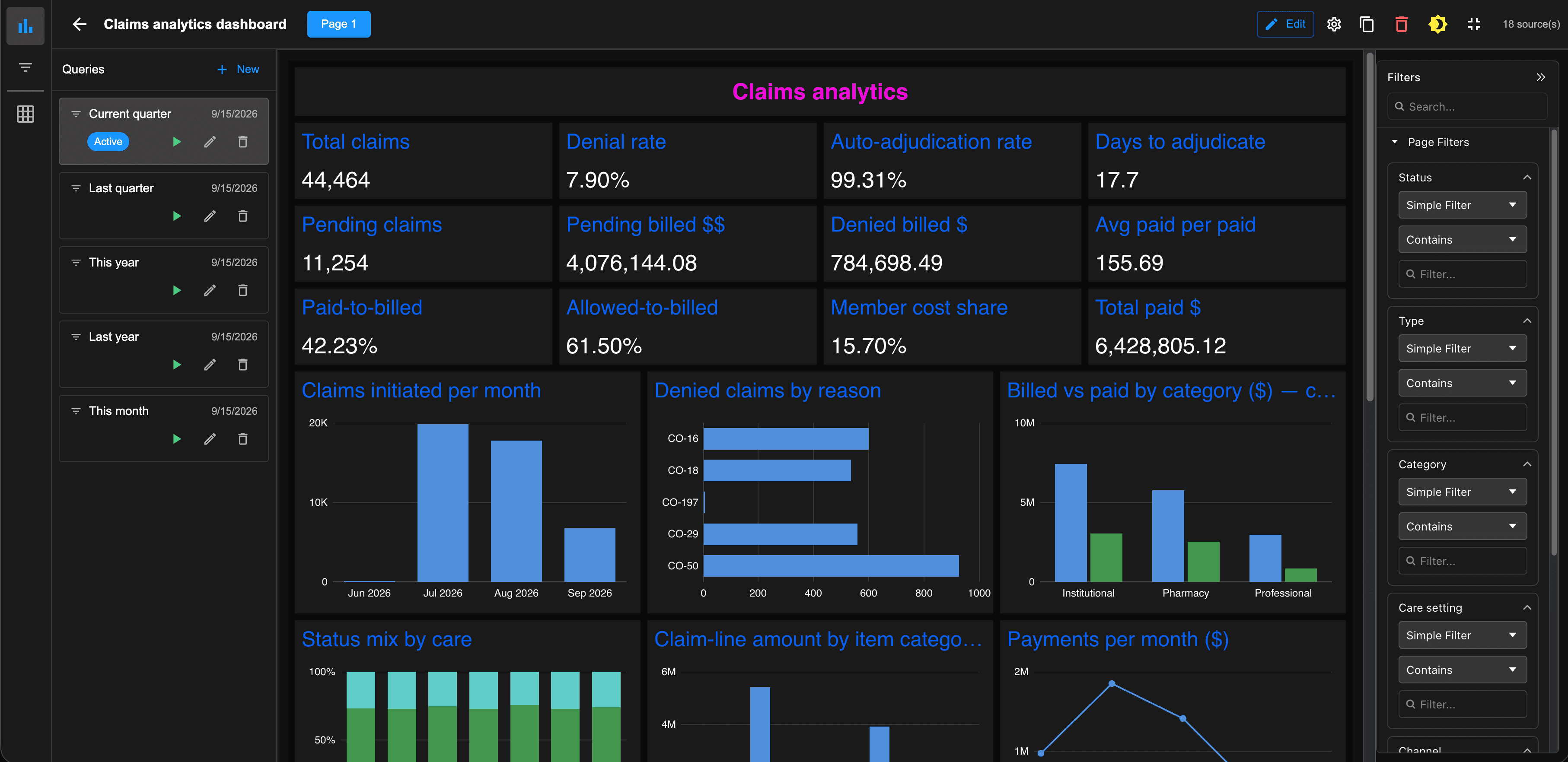
You may be wondering how this compares to Salesforce Tableau. Tableau is an excellent enterprise BI analytics platform. As such, it is a significant investment and to get the proper results usually requires a project to prepare data and technical support to manage the server infrastructure. AppGrid Dashboards is a client-side analytics tool that provide a similar analytics capability without the expense and complexity of an enterprise solution.
Let's take a look at a Opportunity dashboard in AppGrid. Of course, we have it displayed in our favorite dark mode style.
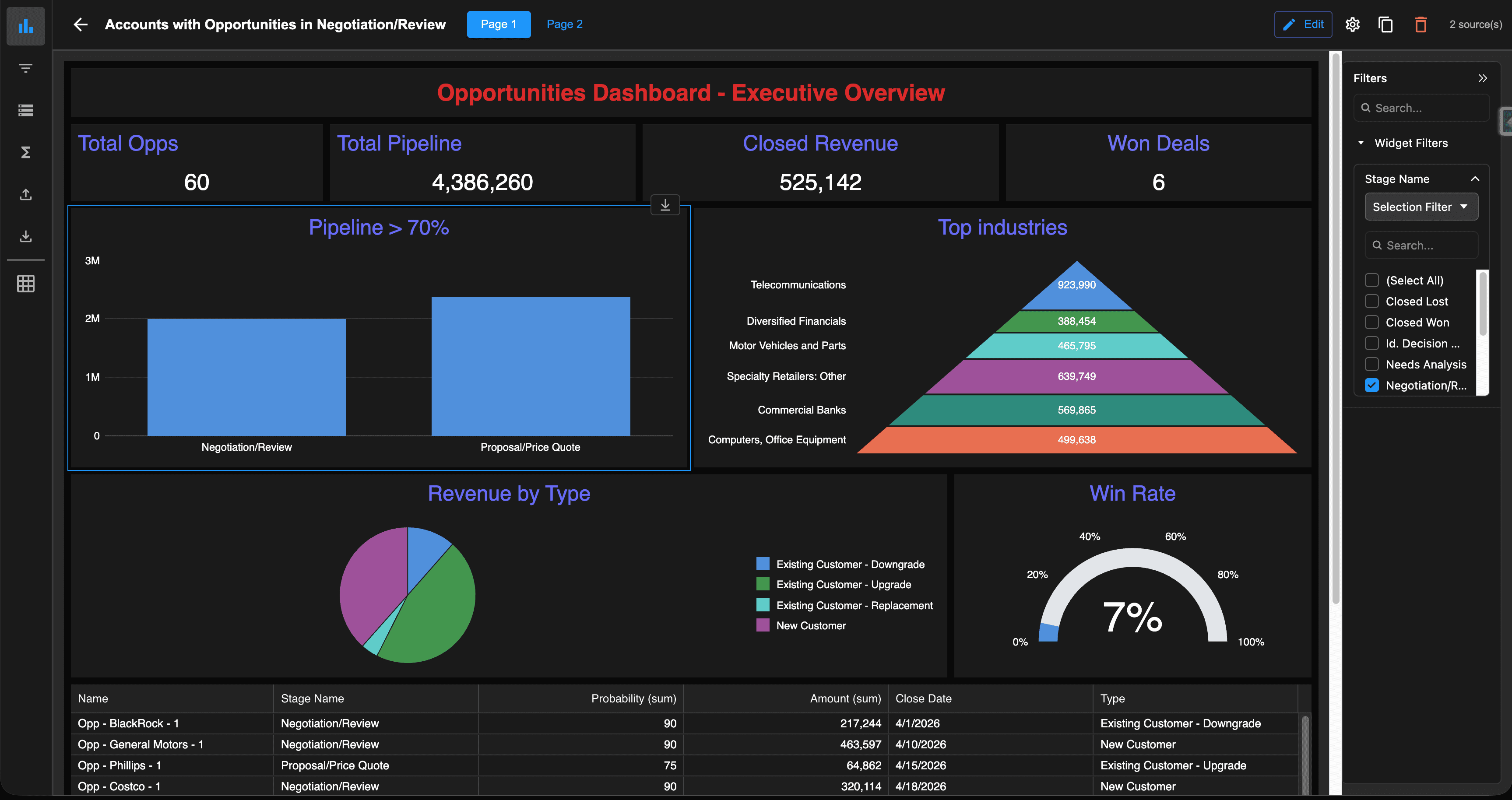
You can click on a chart bar or pie segment and the chart will update dynamically due the cross–filtering capability of AppGrid Dashboards.
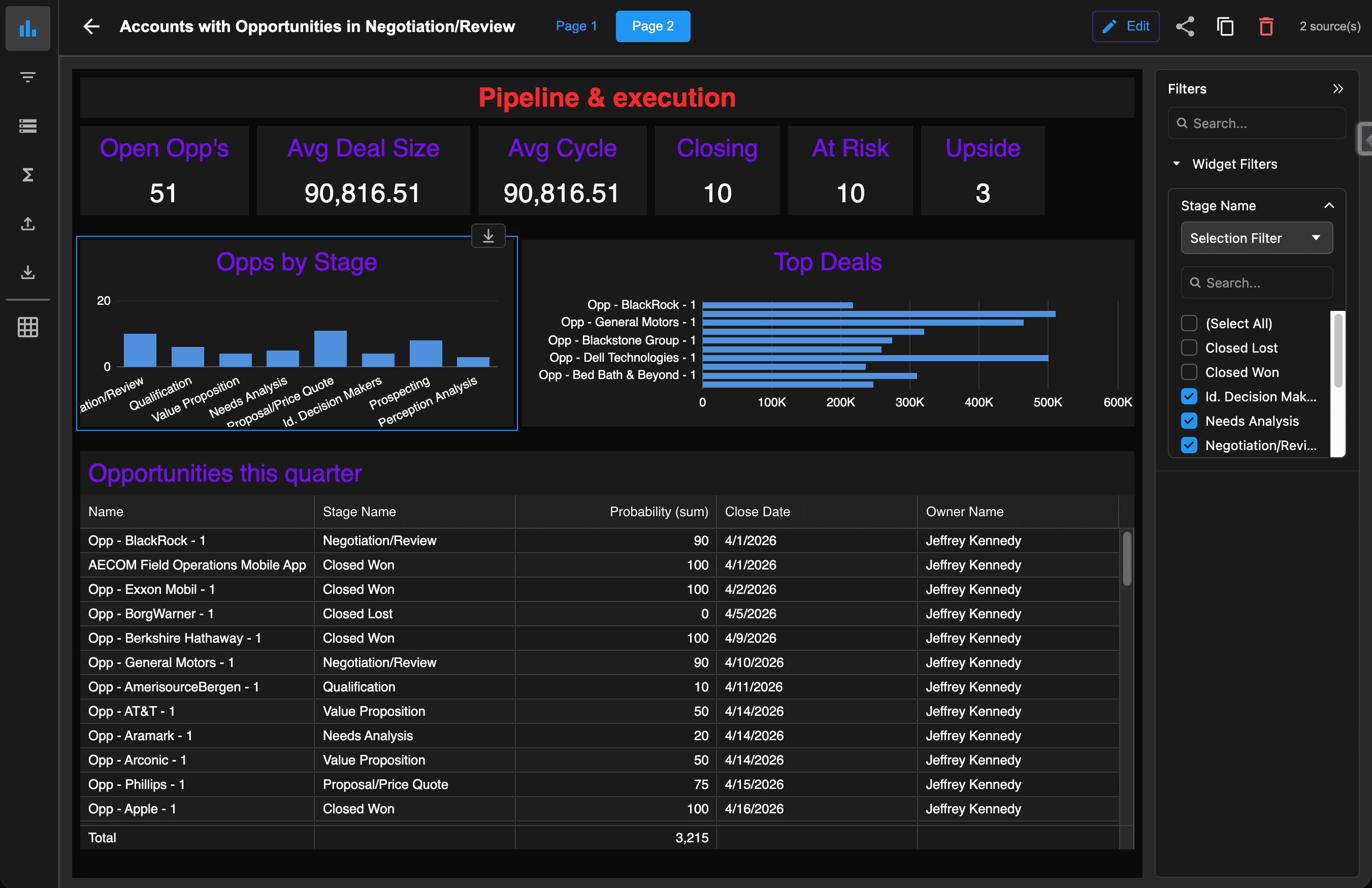
We also support multiple pages. Let's click on Page 2 which is displaying pipeline metrics.
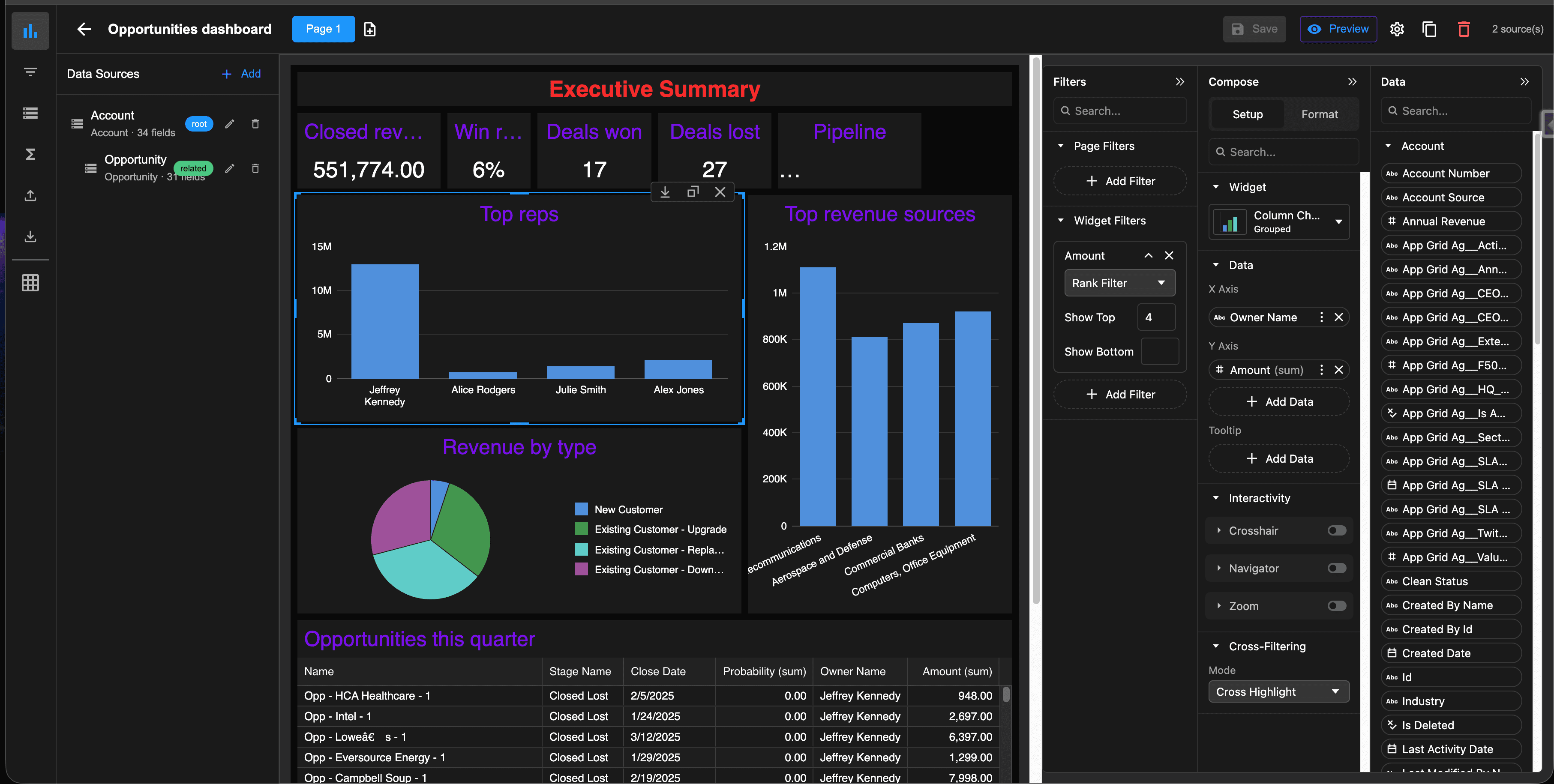
Reports are created using the report designer. Once you have configured the report data sources, you will see the fields for each report object displayed in the Data tab. The Compose tab displays widgets that you can drag onto the report canvas to create your report. The Filters panel is where you can define cross-filters on a per widget or page basis.
Ready to build better dashboards?
See AppGrid Dashboards in action with a personalized demo for your team.
Book a Demo
Book a Demo
Read the Dashboards guide
Explore AppGrid AI