AppGrid Approval Manager

AppGrid now has the ability to submit records for approval and a new approval view which shows items awaiting approval, items submitted for approval and a approval history view. This currently supports classic Salesforce approval processes. Flow-based approval support will be addressed in a future release when the flow Api provides the necessary support.
The design of the AppGrid Approval view is significantly improvement over the native Salesforce UI in that all information and actions needed for approval processes are visible in a single page.
Before using this feature, make sure you have assigned an approver for each user (Profile Manager) and create your approval processes.
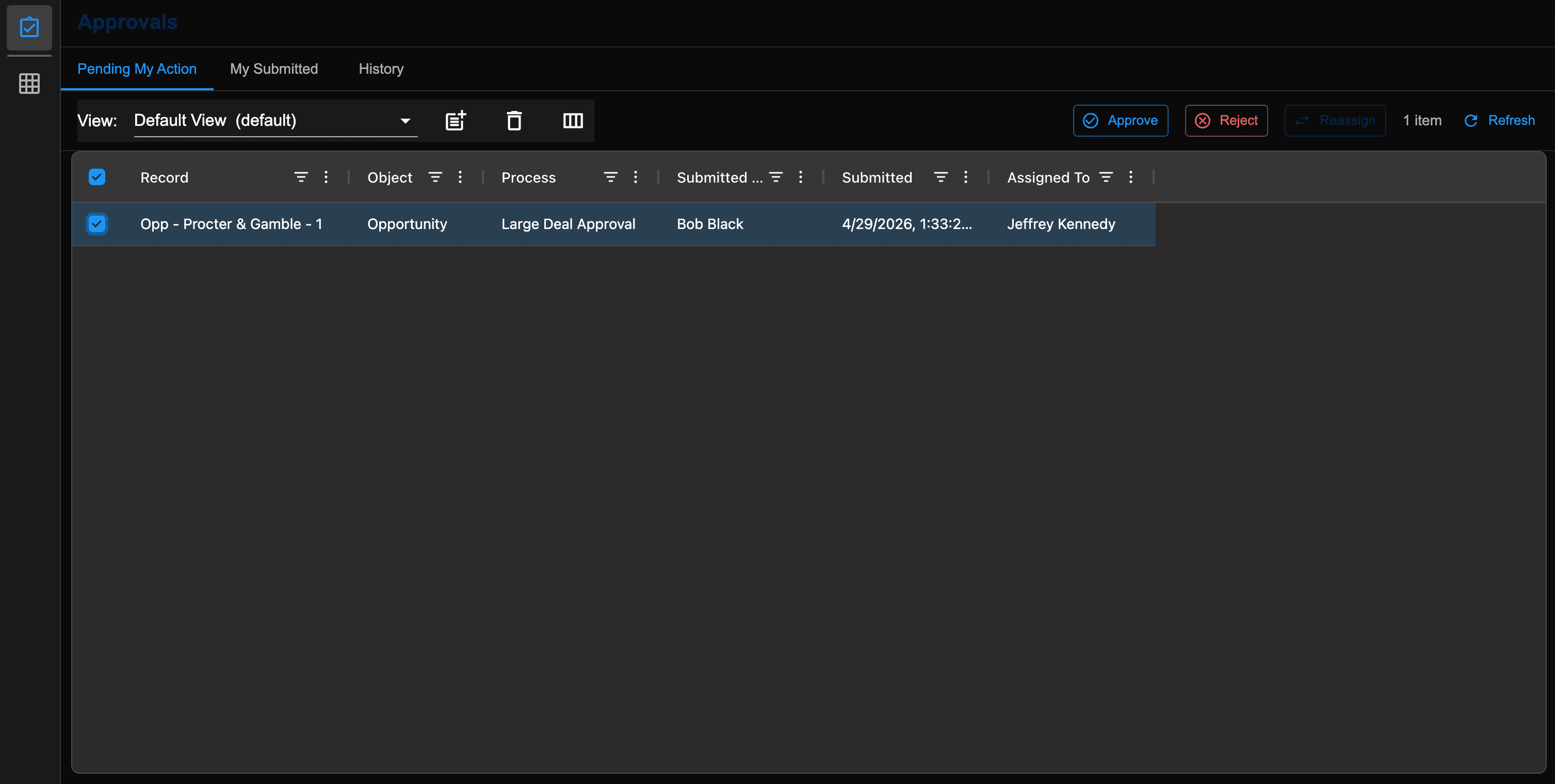
Click the Approval button in the sidebar to open the Approval Manager. The visibility of this button is controlled by the Approval grid permission.
To submit a record for approval, right-click on the record and select 'Submit for approval'. If the user is not the record owner, a warning notification will be displayed.
A dialog will open the allows the user to select what approval process they want.
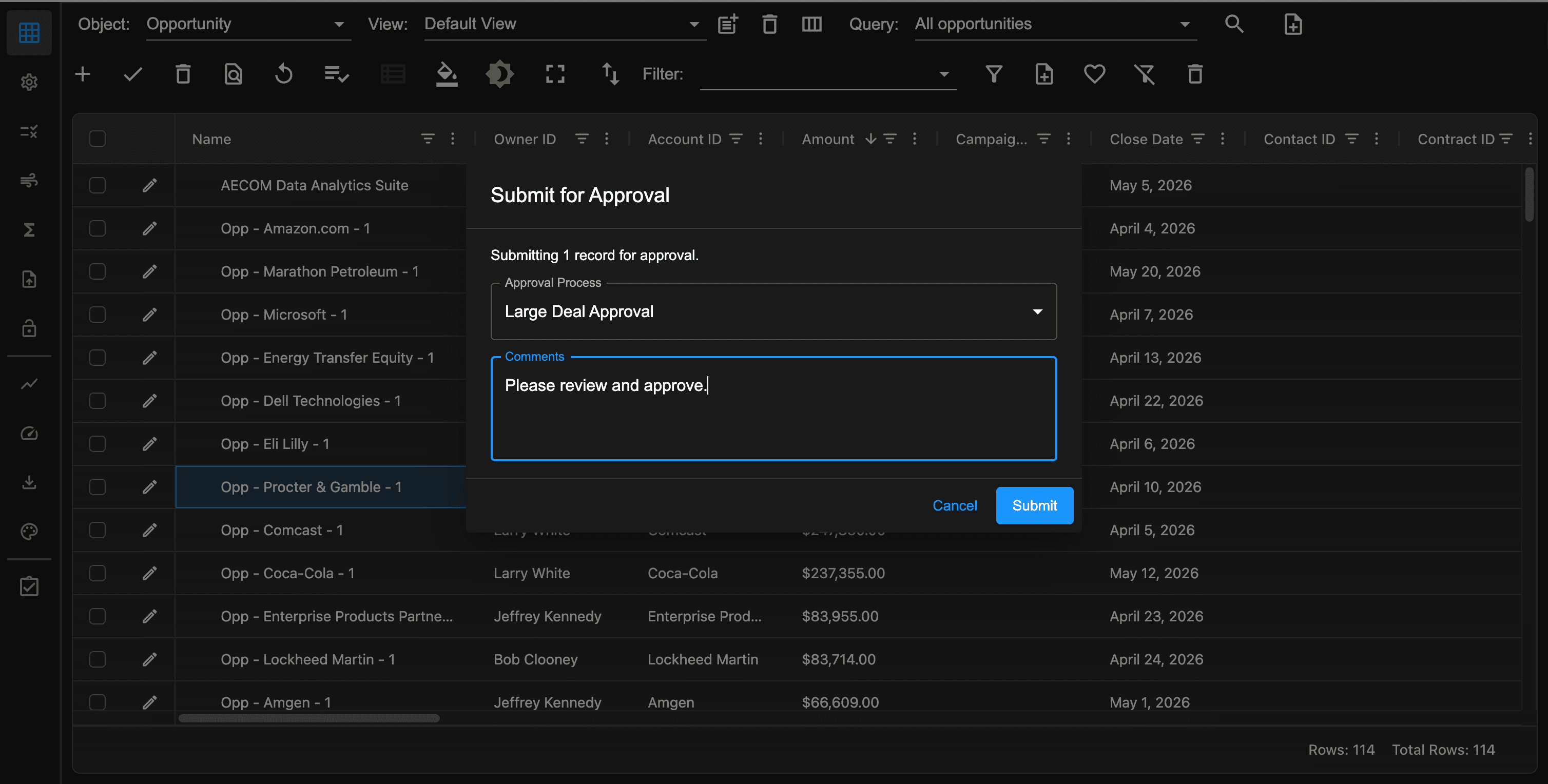
After clicking on the process, it will execute and a success notification will be displayed.
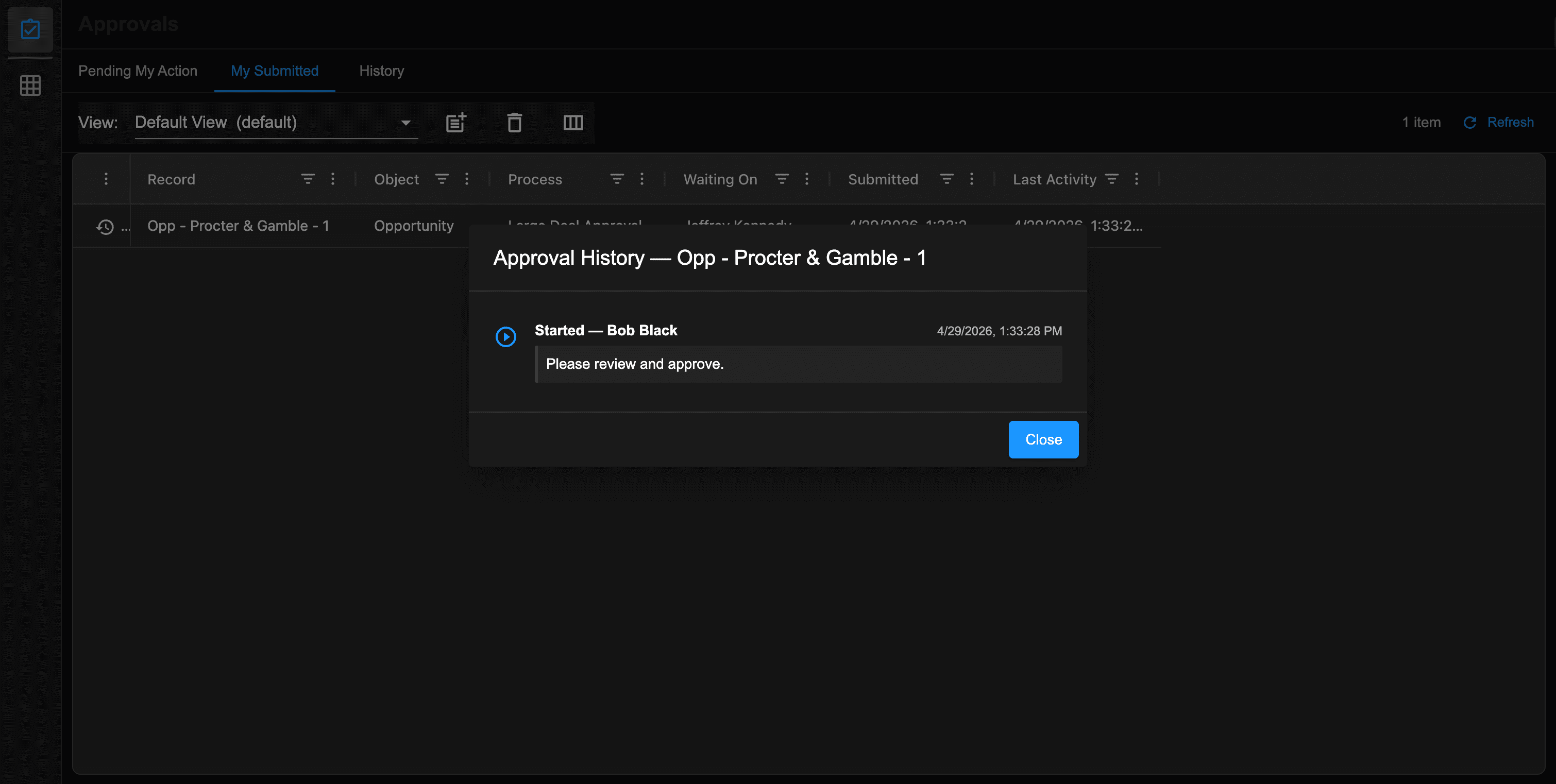
The user can open the approval view and see the submission in the My Submitted tab. Click on the Approval History button to see the details.
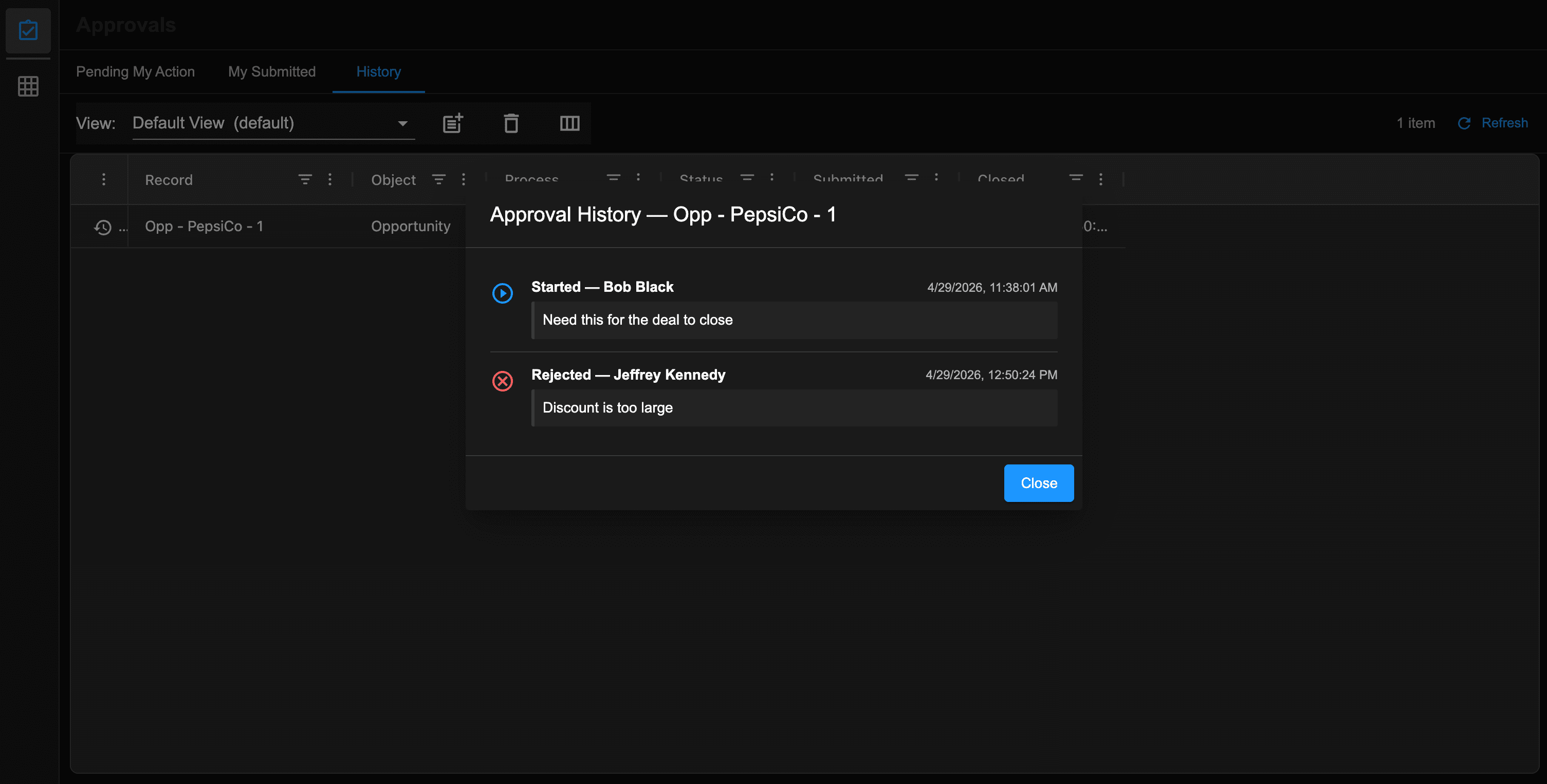
When the record is approved or rejected, the submission will be shown in the History tab. Click on the View History button to see a dialog containing all of the submission steps.
When the approver opens the Approval view, they will see all pending approvals awaiting their response in the Pending My Action tab. Select a record then click Approve or Reject.